Production & filming
Resolution and FPS: why shoot in 4K even when you deliver 1080p
There's one camera setting that separates those who wing it from those who know: shooting with more resolution than you'll deliver. It looks like a waste — but it's what gives you the freedom to reframe, zoom and stabilize in the edit without losing quality.
~9 min read
1. The sizes: HD, Full HD, 4K and 8K
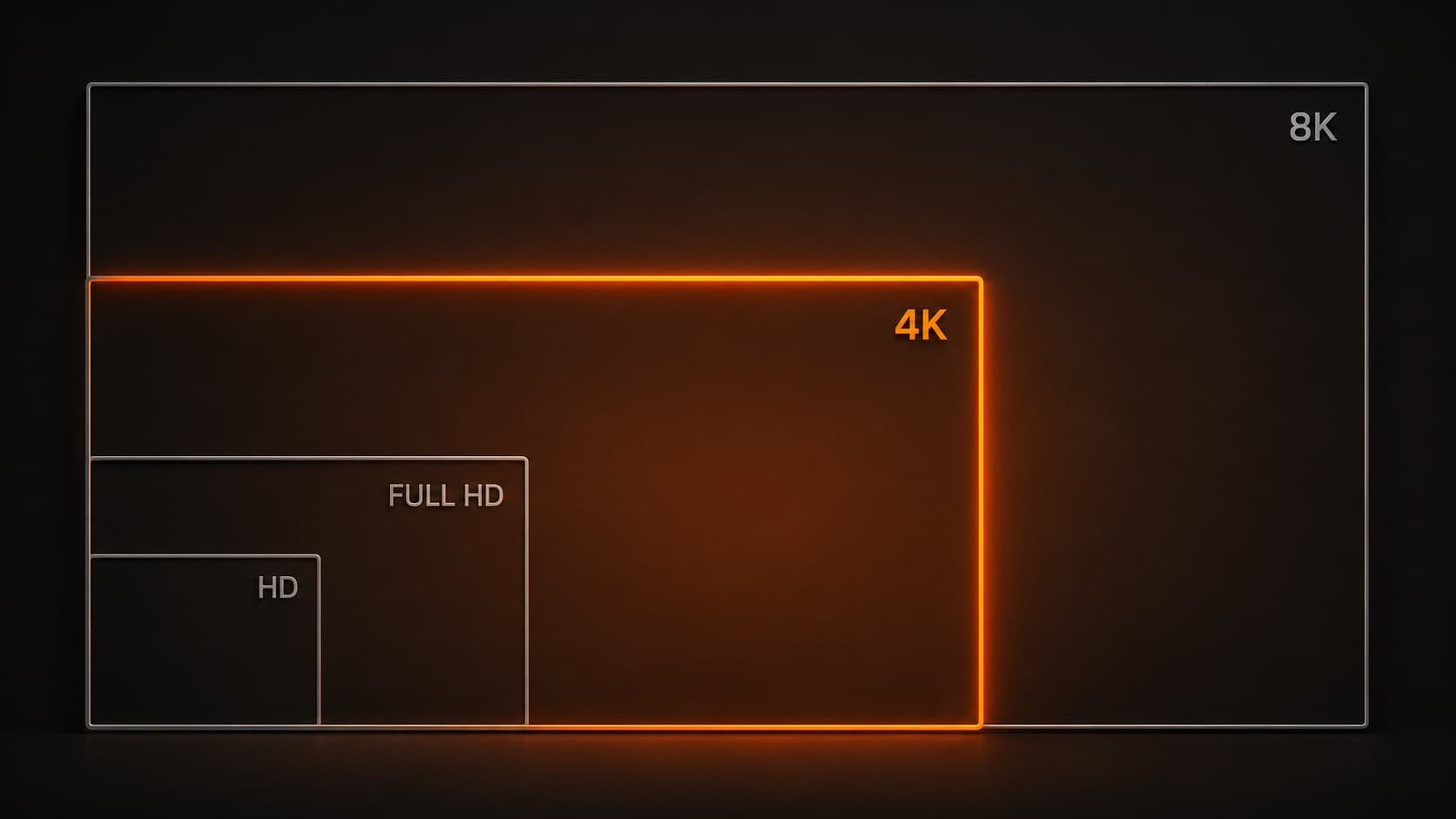
Resolution is the number of pixels in the image — the more pixels, the more detail. The most common names form a ladder. One detail that trips a lot of people up: from HD to Full HD the pixels only double (about 2.25×), but from Full HD up, each step has four times the pixels of the one below it:
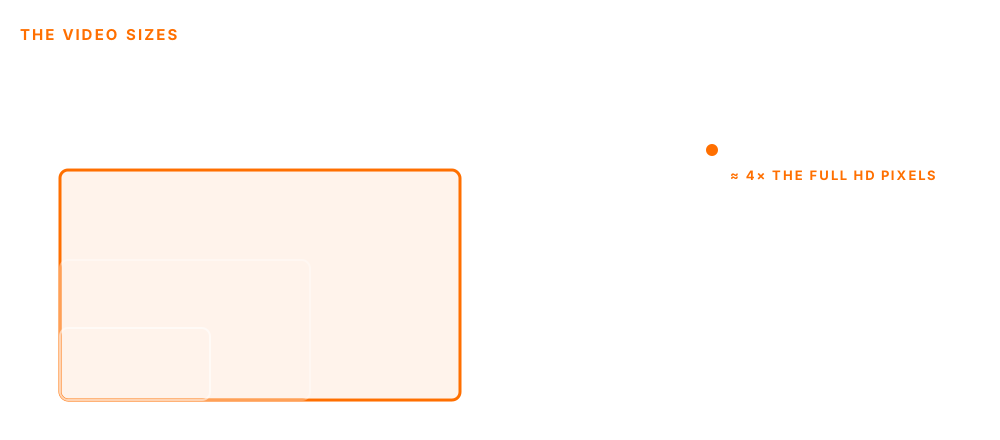
- HD (720p) — 1280×720 — the floor. Fine for social media and small screens, but it already looks dated on a big screen today.
- Full HD (1080p) — 1920×1080 — the delivery standard for the web and TV. It's what most of your audience watches.
- 4K (UHD) — 3840×2160 — the sweet spot to shoot today: detail to spare and room to edit.
- 8K — 7680×4320 — too high for almost everything: huge files, few screens that use it. Niche, for now.
2. The pro trick: shoot bigger than you deliver
Here's the trick of the trade: shoot in 4K even if you're going to deliver 1080p. Because 4K has four times the pixels, a 1080p crop inside the 4K image stays at full resolution — sharp.
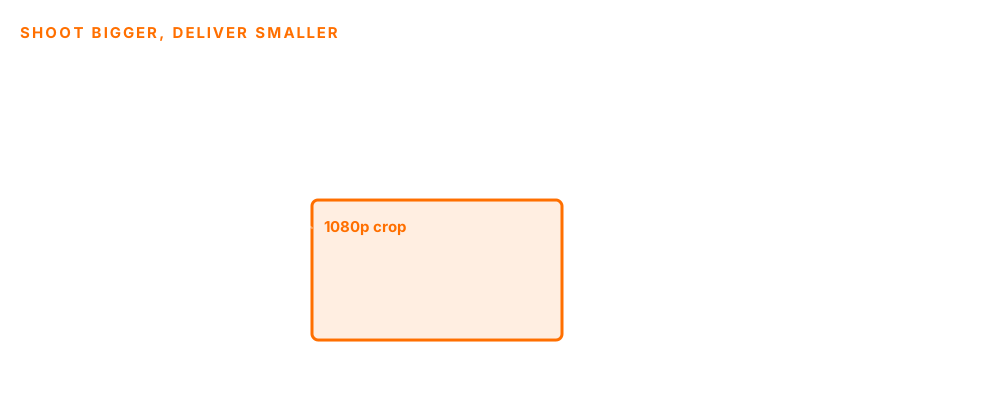
In practice, that gives you freedom you don't have when you shoot at the same resolution you deliver:
- Reframe — move the frame, fix a crooked composition, or create two shots from a single take.
- Zoom without losing quality — a digital “push-in” on 4K still delivers clean 1080p.
- Stabilize — stabilization in the edit “eats” the edges of the image — the extra 4K covers that cost.
3. Pros and cons
Shooting in 4K isn't free. It's worth knowing both sides before you crank everything to the max:
- ✓ More room in the edit — reframing, zoom and stabilization — the freedom from the section above.
- ✓ Future-proof — your footage stays useful as screens (and YouTube) evolve.
- ✗ Heavy files — 4K takes up about 4× the space of 1080p — one hour passes 20 GB. It needs a fast card (V30/U3 class at a minimum, V60 for headroom) and plenty of storage.
- ✗ A more demanding edit — it calls for a stronger computer to run smoothly when you edit.
- ✗ It can overheat — shooting in 4K (even more at 60 fps) heats the camera up and drains the battery fast — and on a phone the heat can STOP the recording mid-take (Apple itself confirms the iPhone disables camera features to cool down). On a long take, keep an eye on it.
4. FPS: what it is and which to use
FPS are the frames per second — how many images the camera records each second. More frames make motion smoother and open the door to slow motion, but they need more light and create bigger files. The most common:
- 24 fps — the “cinematic look.” Ideal for narrative, corporate and interview videos.
- 30 fps (or 25) — the safe standard for almost all YouTube content. Where TV is NTSC (Brazil, US) you use 30/60; where it's PAL (much of Europe) the equivalent is 25/50 — for the web it doesn't matter, the platform plays either one.
- 60 fps — very smooth motion — great for sports, action, games and screen recording. It becomes smooth slow motion: shot at 60 and played at 24, time drops to ~40% of speed. But careful: in narrative / talking-head video, 60 fps strips the “cinematic look” and gives a soap-opera feel (the so-called “soap opera effect”) — to talk to camera, stick to 24 or 30.
- 120 fps or more — made for dramatic slow motion: you shoot fast and slow it down in the edit.
A setting that goes hand in hand with fps is the shutter: for motion to look natural, set it to ~2× the fps — 24 fps calls for 1/48 (or 1/50), 30 fps calls for 1/60, 60 fps calls for 1/120. Too fast a shutter makes motion “choppy,” without the slight blur the eye expects.

5. The practical recommendation
For most YouTube videos: shoot in 4K, at 24 or 30 fps, and deliver in 1080p. You get all the editing room without burdening your audience with a giant file. Save 60 fps for when there's a lot of movement or you intend to slow it down.
Your camera only does 1080p? No problem: shoot in 1080p and nail the framing on the spot — the reframing trick only works when there's resolution to spare, so anyone shooting at delivery size has to get the frame right while recording. The same goes for anyone shooting on a phone: most already shoot in 4K, you just have to find the setting in the camera app before recording.
And remember: resolution and fps are pre-production decisions — better to settle them before shooting than to discover in the edit that you ran out of room. How much room you need depends on the framing; and color and light go further when there's resolution to spare to work with.
6. Myths that cost you
- “Resolution is everything” — no. Bitrate (the data rate) and codec weigh just as much: a 4K clip with a low bitrate fills with “blocks” and can look WORSE than a well-shot, well-lit 1080p. High resolution doesn't fix bad light.
- “The more fps, the better” — it depends. 60 fps is great for action and slow motion, but in a talking-head video it strips the cinematic feel and looks soap-opera-ish. For narrative content, 24 or 30 is right.
- “Crank everything to the max (4K60 always)” — for a static talking-head it's a waste: it fills the card, heats the camera and bogs down the edit, with no visible gain. Match the setting to the type of video.
- “You can create slow motion from any video” — no. You can only truly slow down what was shot at a high fps. Forcing slow motion on a 30 fps video makes the edit “invent” blurry frames.
Quick questions
Should I shoot in 4K or 1080p?
If your camera shoots 4K, shoot in 4K even if you're going to deliver 1080p. 4K has about 4× the pixels of Full HD, so a 1080p crop inside the 4K image stays sharp — and that gives you room to reframe, zoom and stabilize in the edit. All you pay for is bigger files and a heavier edit. For most videos: shoot 4K, deliver 1080p.
What's the difference between resolution and image quality?
Resolution is just the number of pixels (4K = 3840×2160). Quality also depends on bitrate (the data rate), the codec, the light and the lens. A 4K clip with a low bitrate fills with “blocks” and can look worse than a well-shot, well-lit 1080p. High resolution doesn't fix bad light — it's one factor among several, not the only one.
How many FPS are best for YouTube?
For talking-head, vlog or narrative content, 24 or 30 fps (25 where PAL is the standard) — it looks natural and has the “cinematic look.” For sports, action, games and screen recording, 60 fps makes motion smoother. Use 60 fps or higher only when there's a lot of movement or you intend to slow it down; otherwise it's just a bigger file with no gain.
Why does 60 fps in a talking-head video look “soap-opera-ish”?
It's the so-called soap opera effect. The extra smoothness of 60 fps removes the slight motion “blur” the brain associates with cinema, and the image looks hyper-real — the same look as soap operas shot on video. For someone talking to camera, that usually reads cheap; that's why 24 or 30 fps is right for this kind of content.
Is it worth shooting in 8K?
For almost no one, today. 8K creates huge files, demands a very powerful computer to edit and very few screens actually take advantage of the resolution. The extra reframing room rarely justifies the storage and processing cost. For 99% of creators, 4K is the sweet spot; 8K is niche.
What memory card do I need to shoot in 4K?
4K (even more so at 60 fps) generates a lot of data per second, so the card needs a high write speed — V30 / U3 class at a minimum, and V60 for headroom. A slow card causes stutters and interrupted recordings. Beyond speed, count on plenty of space: one hour of 4K easily passes 20 GB.
How do I keep the camera or phone from overheating while shooting 4K?
Shooting in 4K (especially at 60 fps) heats the device up and drains the battery fast; on a phone the heat can interrupt the recording mid-take. On long takes, prefer 4K at 24/30 fps over 60, take the phone's case off, keep direct sun off the device, and take breaks. If your camera has a lower-quality option for long recordings, it's good insurance.
Sources
- Wikipedia — 4K resolution — the pixel math (and UHD vs. DCI 4K).
- Wikipedia — Shutter speed — the rule of shutter at ~2× the fps (180°).
- Wikipedia — Slow motion — why you can only slow-mo with a high fps.
- Wikipedia — Soap opera effect — why 60 fps in narrative looks soap-opera-ish.
- Dacast — Bitrate vs. Resolution — a low bitrate ruins 4K — resolution isn't everything.
- Apple — If your iPhone gets too hot — the iPhone disables the camera to cool down.
- MacXDVD — 4K video file size — how much space 4K really eats.
All that room 4K gives you only turns into results when you edit — that's where the reframing, the zoom and the stabilization happen. Putting that room to work in the final cut is HEY JOE's job — and if you're unsure which resolution or frame rate to use to get the most in post, we'll point you the right way.