Production & shooting
Chroma key (green screen): the secret is the light
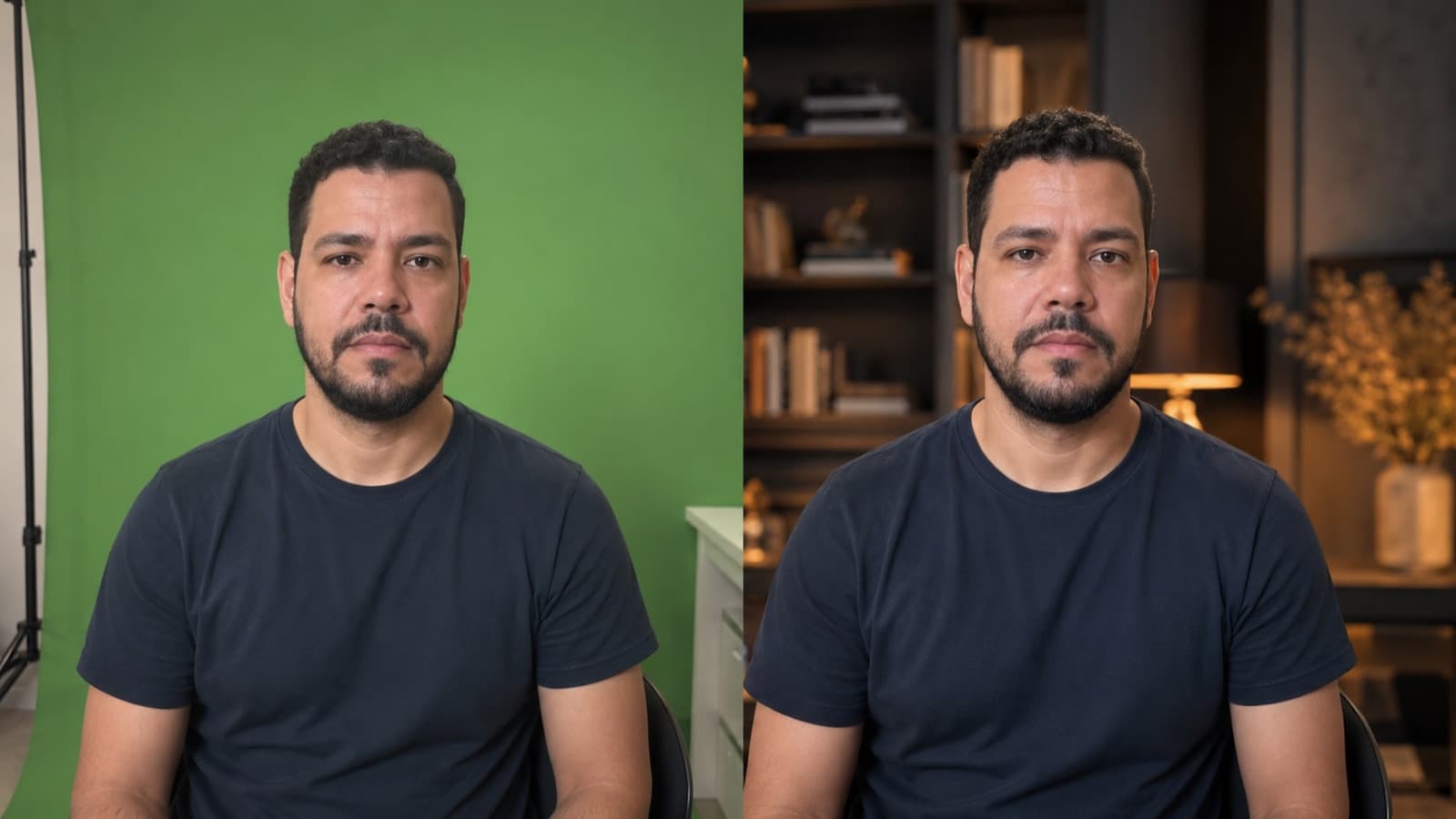
A green screen swaps your video's setting for any image you want — great for lessons, channels and kids' content. But the secret isn't the fabric: it's the LIGHT. 90% of bad keys come from uneven light on the background and green “leaking” onto the person.
~9 min read
1. What it is — and when it's worth it
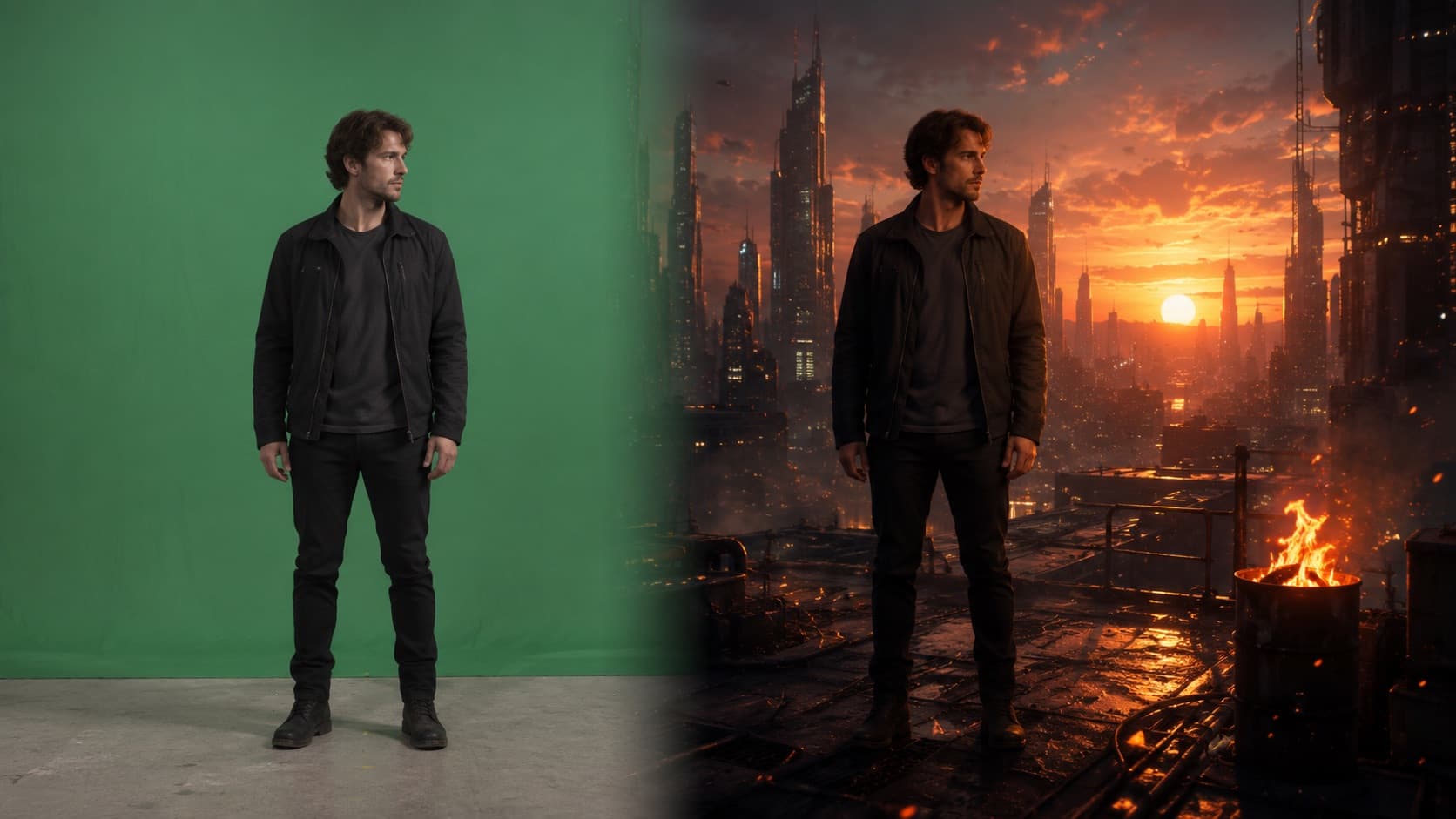
Chroma key replaces a solid color (almost always green, the color farthest from skin) with another image. The editor wipes out everything that's that green and drops in whatever setting you want. You can do it 100% on your phone — CapCut has chroma key on mobile (the basic version is free).
A quick aside: why green (or blue) and never red? Because green and blue are the colors farthest from skin tone — human skin has a lot of red in it, so a red background would “erase” the person right along with it. Between the two, green usually wins: cameras capture more detail in the green channel and it needs less light. Blue comes in when the person is wearing green or has light hair.
- Worth it for — lessons (swap the background for slides/a fixed setting), channels that need impossible environments, and kids' video (the child “steps into” a playful world).
- NOT worth it when — you just want to hide the mess in your room — there a smooth wall + your phone's own blur solves it with far less work.
- The truth no one tells you — the gear is the easy, cheap part. What separates the pro from the amateur is 100% the lighting (section 3).
2. The screen: wrinkle-free and at the right distance
- Polyester/oxford fabric — best bang for the buck to start: firm, wrinkle-resistant, foldable (entry-level, ~US$20–40 / R$60–250). Steer clear of shiny fabric — it reflects and blotches.
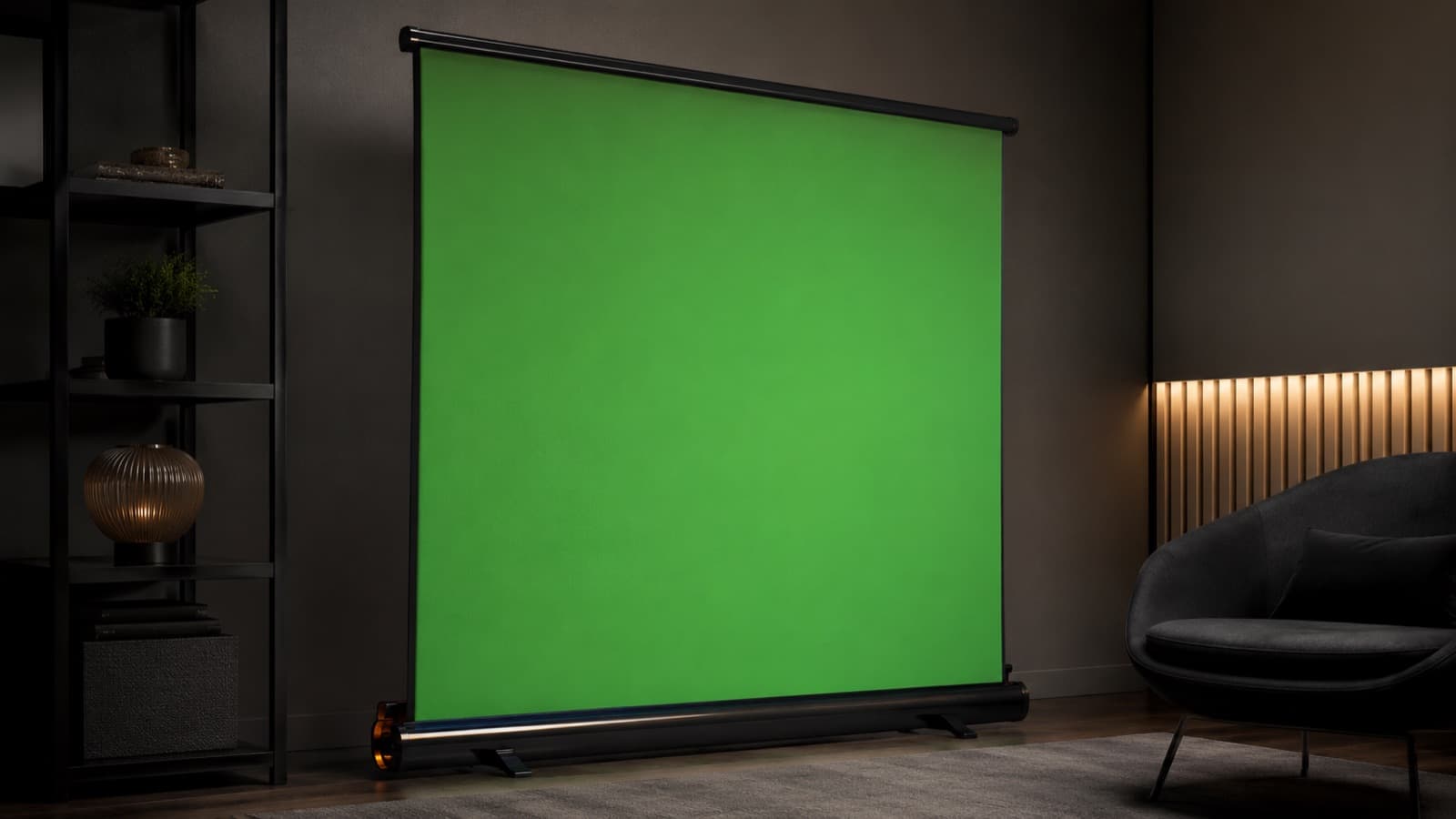
- Collapsible (pop-up) — sets up in seconds already taut, wrinkle-free — ideal for lessons/lives and tight spaces (generic ~US$60–120 / R$300–600; Elgato premium ~US$150–200 / R$900–1,400).
- Painted wall — a fixed, always-taut alternative: MATTE paint (no sheen) in chroma green/blue. Doesn't wrinkle, needs no stand — you just can't carry it around.
- Wrinkle-free is the rule — any fold turns into a shadow that wrecks the key. Fabric came folded? Iron/steam it or hang it up a day ahead.
- Distance (the #1 anti-spill) — stand at least 2 m in front of the screen (the more space, the less shadow on the green). Up close, the green reflects onto your skin/hair and the software erases bits of you with it.
3. The key part: even, SEPARATE light
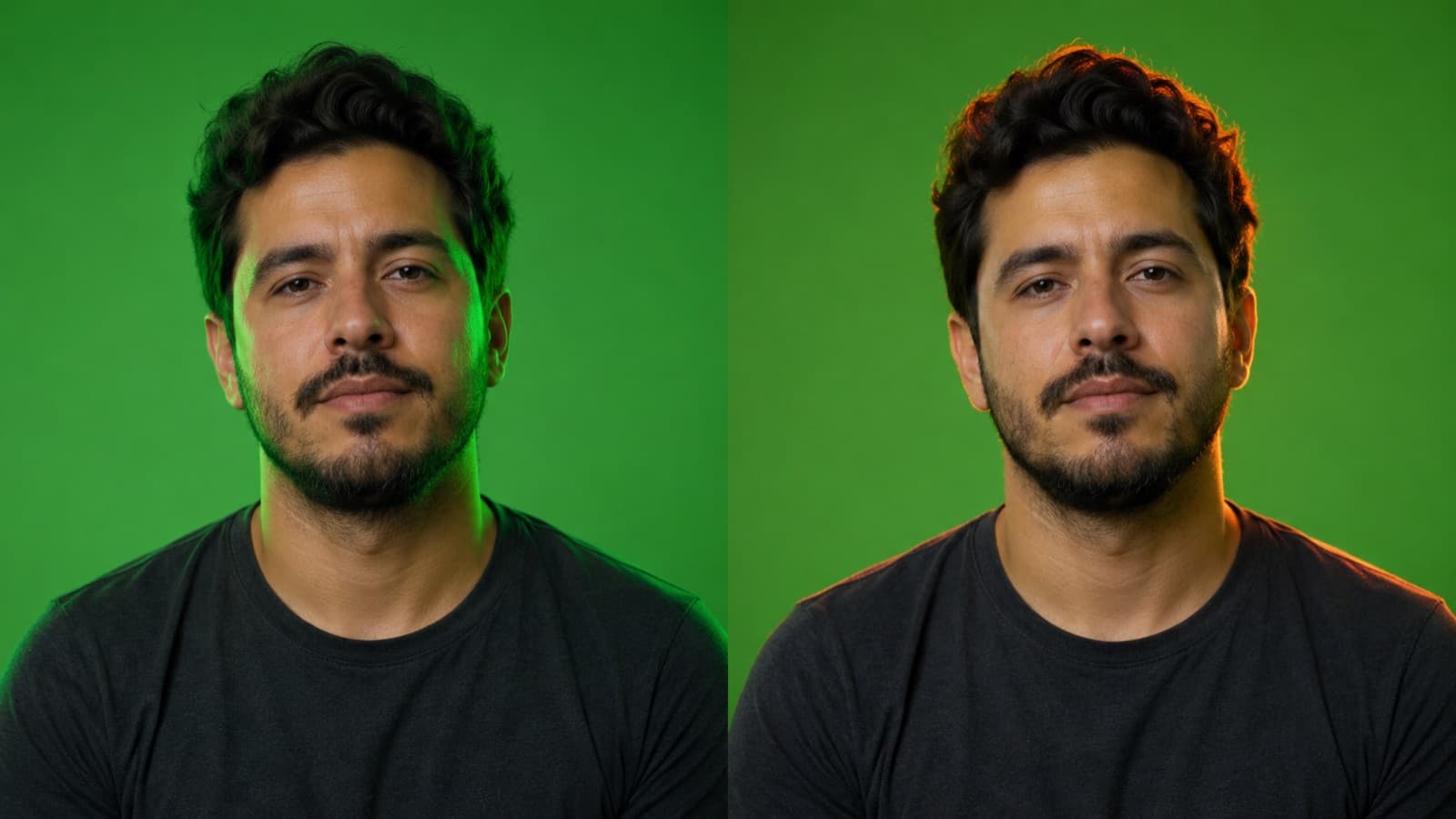
The golden rule has two parts: light the background and the person with separate lights — never the same light for both.
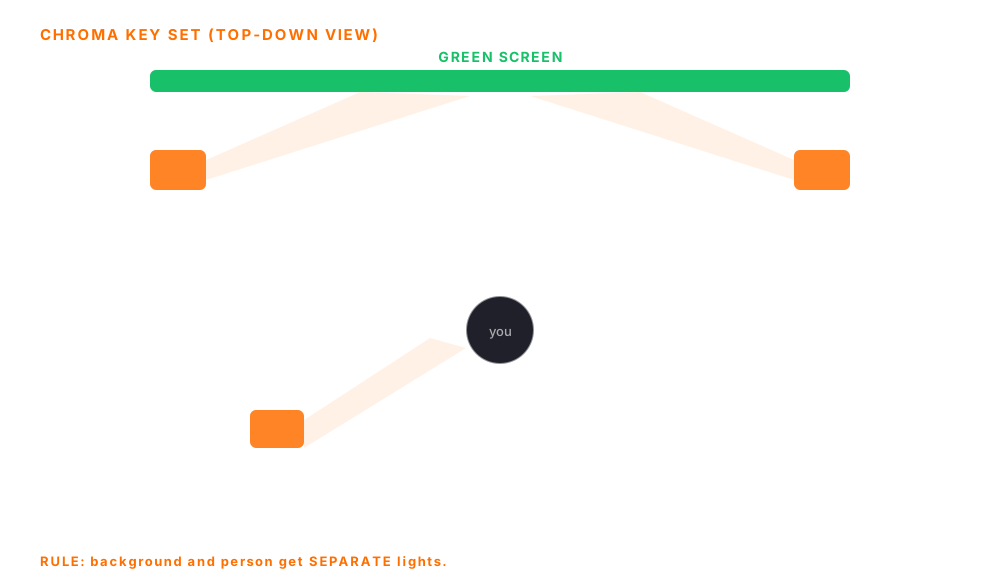
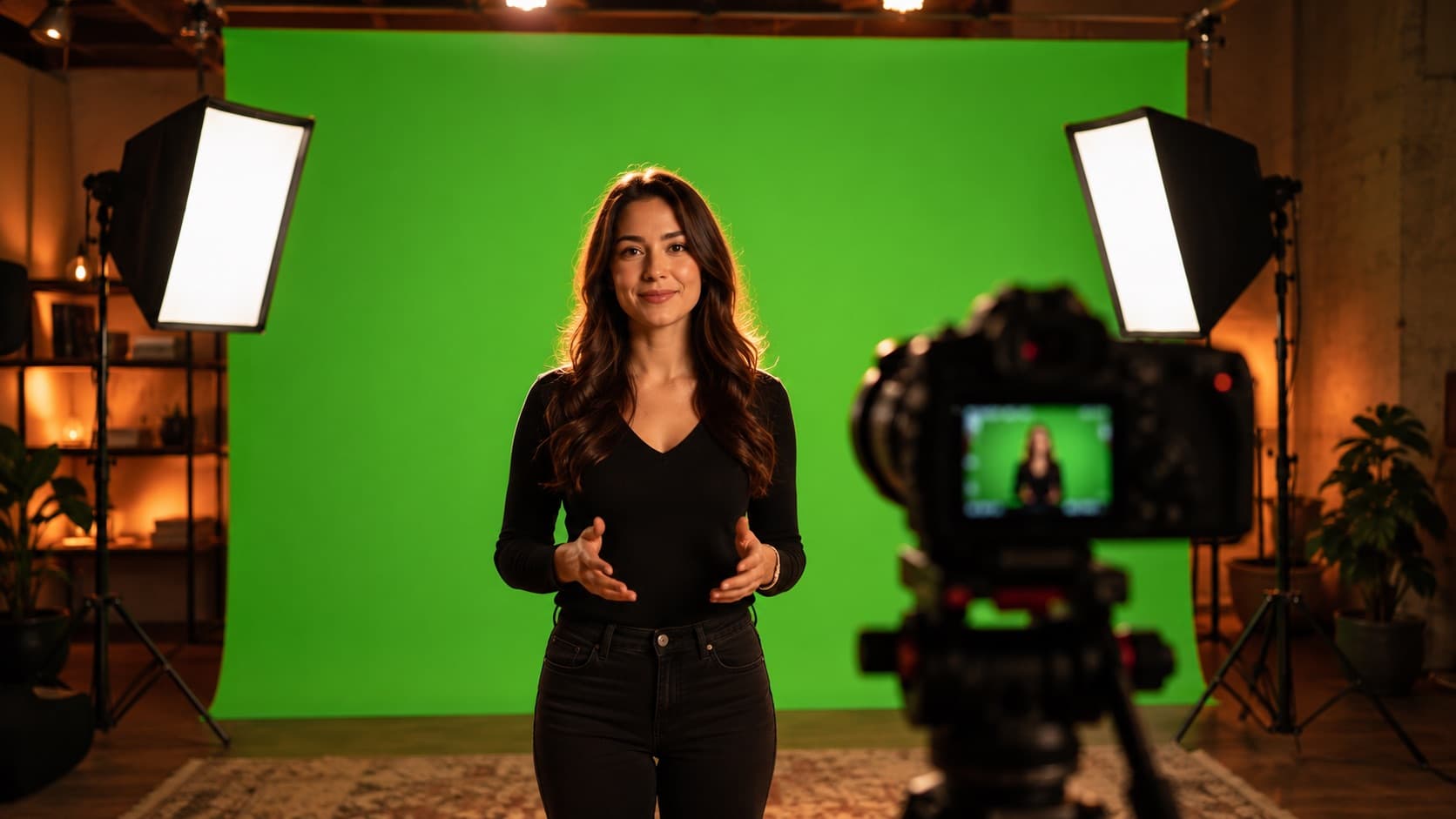
- Background = FLAT light — 2 softboxes (one on each side, ~45°) covering the whole green, with no bright patches (hotspots) or shadows. Even green from corner to corner.
- Person = their own light — key light on the front diagonal + fill on the opposite side to soften the shadow. Independent from the background light.
- Backlight = kills the spill — a light behind and above the person rims the hair/shoulders and “drowns out” the green reflected on the edges. It's the detail that makes it look professional.
- Check with a test photo — shoot JUST the lit background (without you). See a brighter or darker patch? Adjust the lights until it's even.
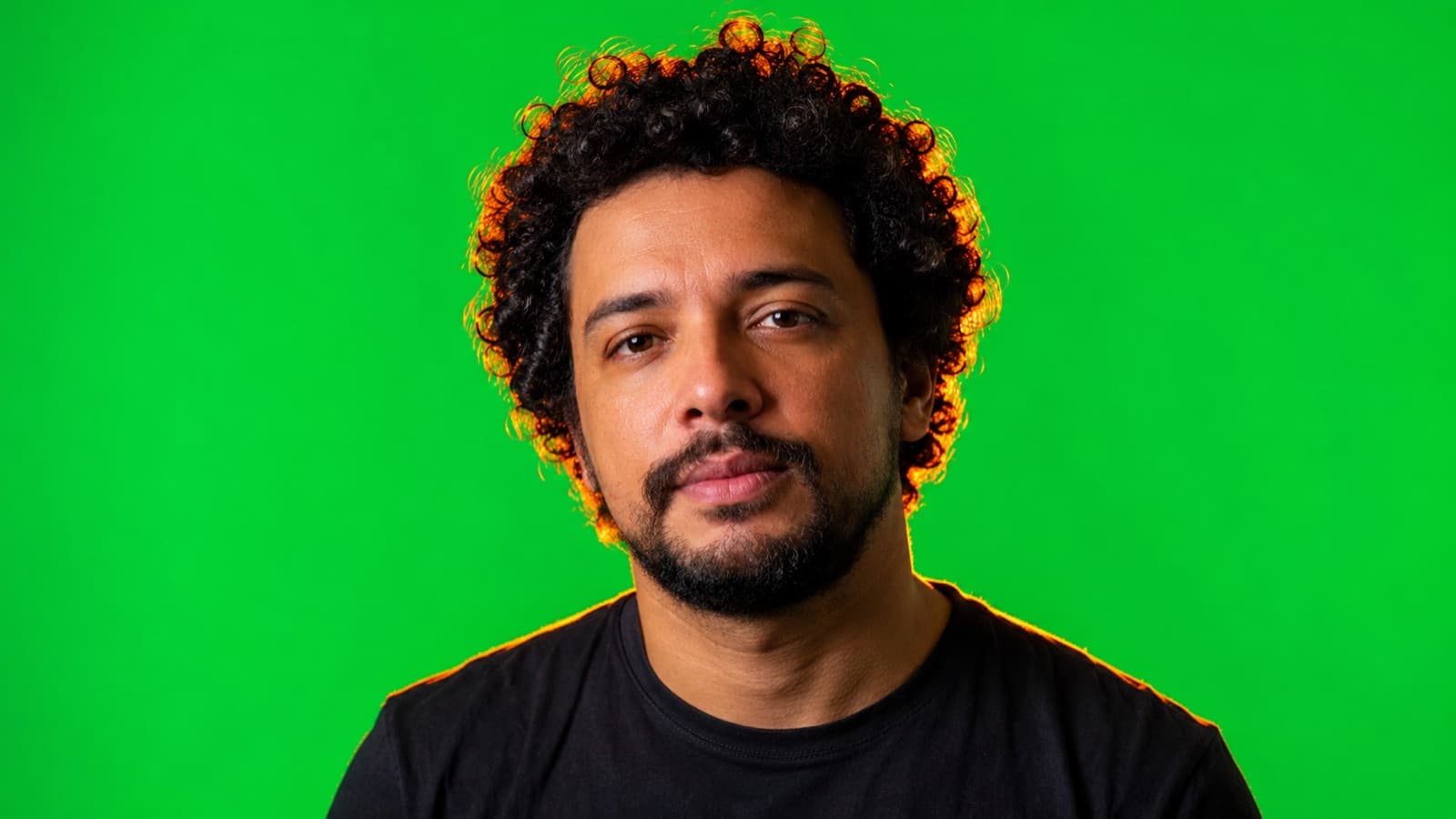
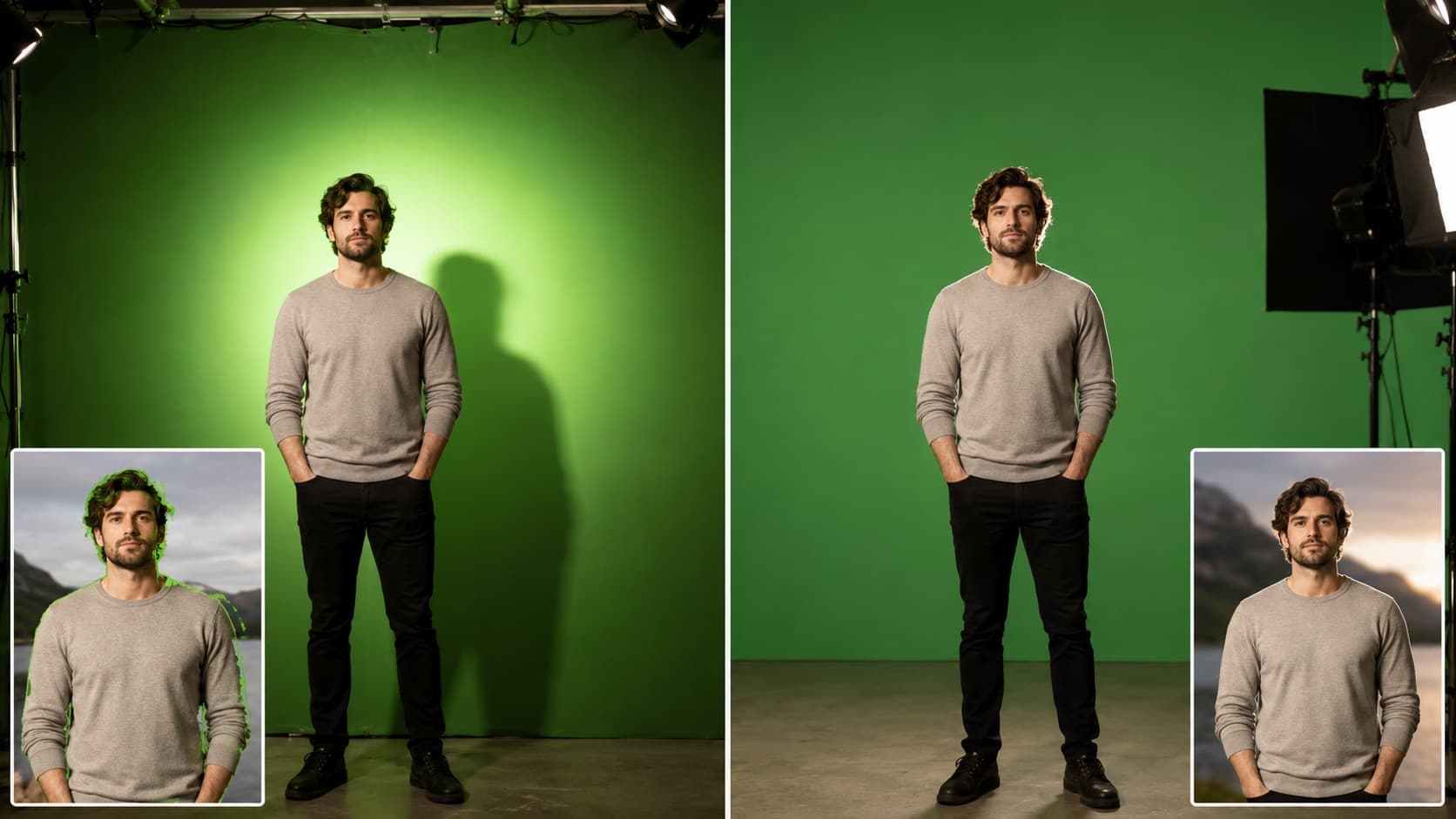
Lighting itself has a whole guide — see lighting for video (key, fill, backlight and color temperature).
4. Camera on a tripod, resolution and framing
- Always a tripod — a still camera is a prerequisite — shaky footage gets in the way of the key.
- High resolution (4K if you can) — the sharper the footage, the better the edge key (hair vanishes at low resolution).
- Never wear green — any green garment/print/accessory vanishes along with the background. In kids' video, no green clothes or toys. (Do you REALLY need to wear green? There's a blue version — blue screen/blue chroma: same principle, you just change the background color.)
Tripod and stabilization details are in the recording kit, and the sizes in resolution and FPS.
5. The 5 mistakes that ruin everything
- 1. Uneven light on the background — hotspots and shadows create different shades of green → jagged edges. (The #1 mistake.)
- 2. Person too close to the background — creates spill and a shadow on the screen. Pull back at least 2 m + a backlight.
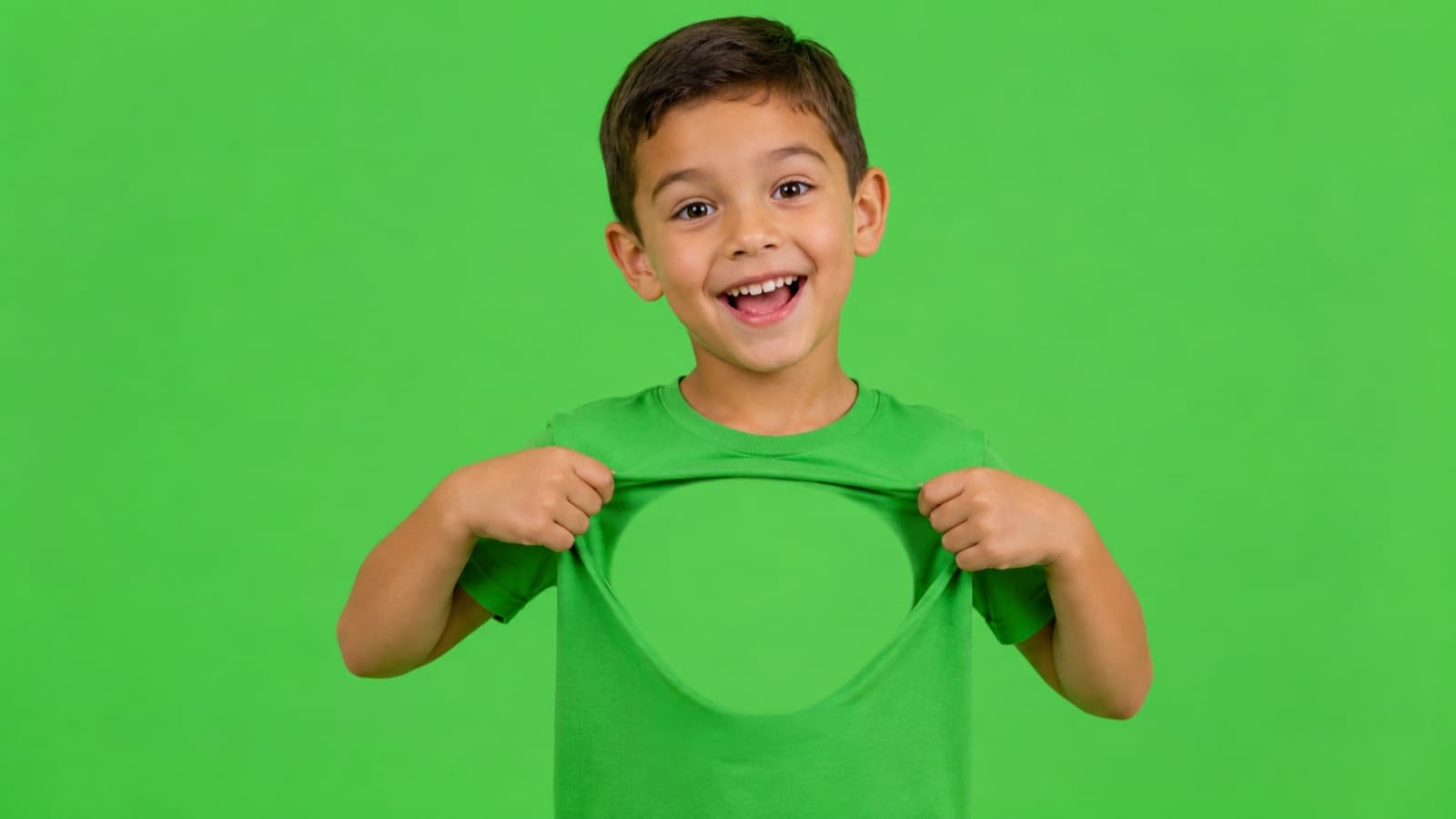
- 3. Wearing green — green clothing/print/accessory turns into a hole in the body. Watch out for jewelry and reflective glasses.
- 4. Low resolution / too little light — noise and compression eat the edge detail. Shoot in 4K/1080p with good light on the person.
- 5. A wrinkled or saggy screen — wrinkles turn into micro-shadows. Wrinkle-free polyester or a collapsible one, pulled taut with clamps (spring clips) or curtain clips.
6. Pro tips (to level up)
- Match the light to the new setting — light the person from the SAME direction and color (warm/cool) as the background you're going to drop in. That's what makes the cutout “belong” to the scene instead of looking pasted on.
- Spill suppression in the edit — every keyer has a “spill suppression” that neutralizes the green left over on the edges and hair. Use it light — pushing it leaves the skin looking gray.
- Light wrap — a final touch that lets the new background's light “bleed” slightly onto the person's edges — the detail that sells the composite.
- Green vs. blue — green keys cleaner on most cameras; choose BLUE if the person has light/blond hair or needs to wear green (blue is gentler on skin, but demands more light).
- Shoot with less compression — if the camera/phone lets you, use the highest-quality mode (less compression / 10-bit) — the hair edges will thank you.
7. AI cutout: when you don't even need the green
In 2026 you can cut out the background without a green screen, using AI — it's what we use a lot here at HEY JOE to speed things up. For talking-head and course videos, it already handles most cases. The tools:
- CapCut — “remove background” — 1 tap, on phone or PC, free. Great for a quick social clip; it's less careful with fine hair.
- DaVinci Resolve — Magic Mask — the AI tracks the person without a green screen (the base app is free; the full Magic Mask is in the paid Studio version). Great value.
- Premiere / After Effects — Object Mask (fast, right on the timeline) and Roto Brush (more precise for hair/motion) — on an Adobe subscription.
- Runway / Unscreen — AI cutout in the browser — handy, but it runs on credits/cloud.
The honest truth: AI is good now, but it's not perfect. It shines at the practical (nothing to set up, instant) and trips on fine hair, fast motion and a busy background. For a flawless key (lots of hair, action), a well-lit green screen still wins.
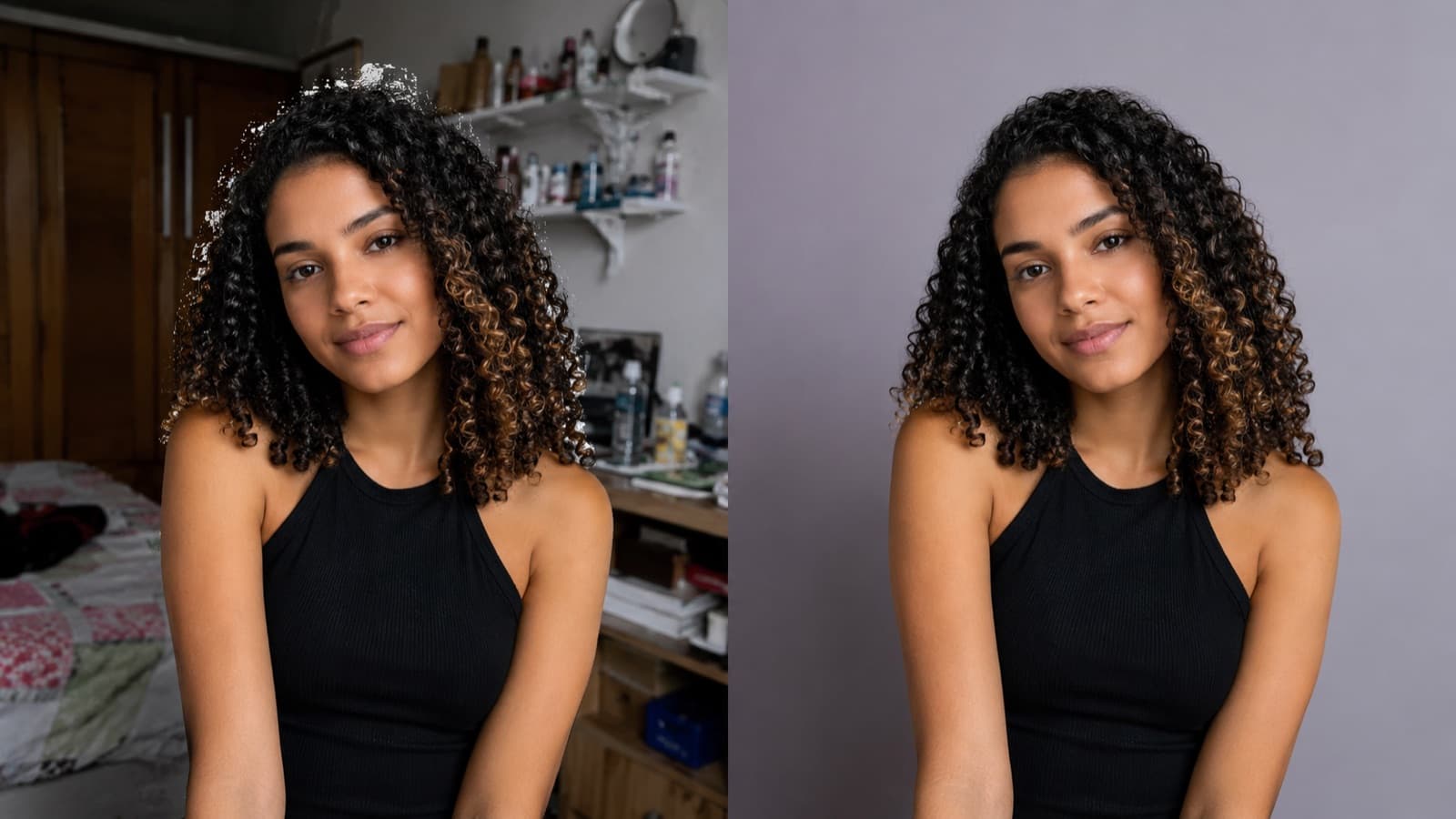
And here's the trick of the trade: you can help the AI a lot even without a green screen, just by prepping the background —
- A clean background — a smooth wall, with no closet, bed, shelf or a thousand objects. The fewer “edges” behind you, the better the AI separates you from the setting.
- A contrasting background (and NOT blown-out white) — use a color that differs from your skin, hair and clothes — a mid-gray, purple or blue wall. Flat white confuses the AI; a solid color gives it something to “grab.”
- Separate the person from the background — 1–2 m of distance + a rim light help the AI just as much as they help the chroma.
- Don't wear the wall's color — if the background is blue, avoid blue clothes (same problem as green on the chroma).
- Good light and sharpness — even light, firm focus, low compression and no shake — a clean edge = a clean key.
Gear by budget
The physics doesn't change from country to country — what changes is where to buy. These are brands sold worldwide (Amazon, photo stores), with ranges in dollars and reais just to give you a sense of the order of magnitude (they vary by region, exchange rate and taxes):
- Screen — entry-level — green polyester/oxford backdrop with a stand + clamps (~US$20–60 / R$60–250); or a 2.7×4.6 m muslin (Neewer) for full-body/kids.
- Screen — convenience — a collapsible one that pops up on its own without wrinkles: generic (~US$60–120 / R$300–600) or an Elgato Green Screen (~US$150–200 / R$900–1,400).
- Light — essential — a kit of 2 continuous softboxes + stands (Godox, Neewer, GVM — from ~US$70 / R$354) to light the background evenly. This is where the money makes a difference, not on the screen.
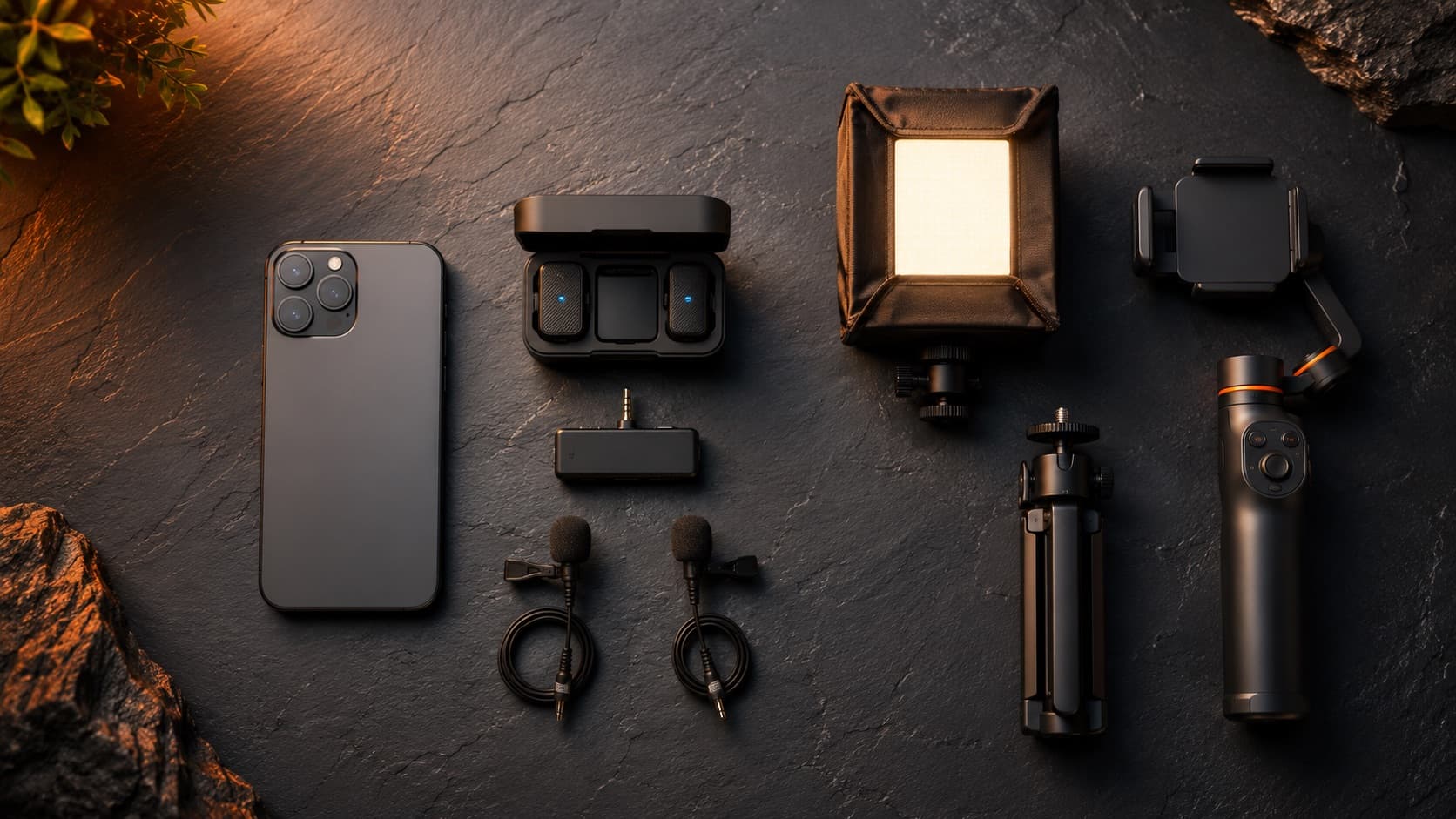
- Tripod — a must for the camera/phone (from ~US$15–40 / R$50–150, with a smartphone clamp).
Sources
- Finchley — Common Green Screen Mistakes — distance (3–6 ft), wearing green, resolution.
- Videomaker — Green Screen Lighting Mistakes — how to fix uneven light.
- CapCut — Chroma Key explained — chroma key on your phone, free.
Want the clean key without setting up the set?
Setting up the screen, nailing the separate light and then compositing the new setting is real work — and the clean key (hair included) is exactly where professional editing shows. Here at HEY JOE, it's always the same editor handling the keying and compositing of each video, personally — with a green screen when it's worth it, with AI when it does the job — and you track everything in a client portal, with a deadline that's set and kept. You record; the part of turning that into a key that looks like cinema is on us.
Quick questions
What's the best color for chroma key: green or blue?
Green wins most of the time: cameras capture more detail in the green channel and it needs less light to stay even. Use blue when the person has light/blond hair or needs to wear green — blue is gentler on skin, but demands more light. Never red: human skin has a lot of red in it, so a red background would erase the person right along with it.
Do I really need a green screen, or does AI already cut it out without one?
In 2026, AI (CapCut “remove background,” DaVinci Magic Mask, Premiere Object/Roto, Runway) already cuts out without a green screen and handles most talking-head and course cases — instantly, with nothing to set up. But it still trips on fine hair, fast motion and a busy background. For a flawless key (lots of hair, action), a well-lit green screen still wins. And you help the AI a lot just by prepping a clean, contrasting background.
Why does my key come out with jagged or ragged edges?
It's almost always uneven light on the background: hotspots (bright patches) and shadows create different shades of green, and the keyer can't wipe them all out at once. Light the background FLAT with two lights (one on each side, ~45°) and check with a photo of just the background, without you in it. Low resolution and heavy compression also eat the edge detail — shoot in 4K/1080p with good light.
How far should I stand from the green screen?
At least 2 m in front of the screen. Up close, the green reflects (spill) onto your skin and hair, and the software erases bits of you along with it; on top of that, your shadow falls on the screen. The more space, the less shadow and the less spill. Add a backlight behind/above you and the edges come out clean.
What is spill and how do I fix it?
Spill is the green that reflects (“leaks”) onto the edges of the person — hair, shoulders, skin. Fix it in the SHOOT, not in the edit: stand ~2 m from the screen and use a backlight that rims the person and “drowns out” the reflected green. The editor's spill suppression is only a light touch-up — pushing it leaves the skin looking gray.
Can I do chroma key on my phone, for free?
You can. CapCut has chroma key (“remove background” and key by color) on your phone, and the basic version is free — it works both for replacing a green screen and for cutting out with AI without a screen. The secret to the result isn't in the app: it's in the even light on the background and the distance. A pricey app with bad light still gives you a bad key.
Can I use a painted green wall instead of fabric?
You can, and a lot of people prefer it: a smooth wall doesn't wrinkle and stays taut all the time. Use matte paint (no sheen, which reflects and blotches) in chroma green/blue, and keep the same rules — flat light, distance and backlight. Fabric only wins when you need to set up and tear down the set, or take it somewhere else.
A clean key, recomposing the background and blending it into the scene are part of the work at HEY JOE — in the edit: you shoot on the green screen, the careful keying is on us. If you enjoy the creative side of this, see how cinema pulls off the impossible in special effects and the pacing that holds a video in editing fundamentals.